Cool Timeline allows you to display your timelines inside pages, posts, or even widgets using shortcodes without needing to use any third-party blocks.
What is Timeline Shortcode?
A shortcode is a simple code snippet that you can insert into your WordPress posts, pages, or widgets to display timelines. Think of it as a command that tells WordPress, “show my timeline here in this style, with these specific settings.“
Follow the steps below to start creating your timeline stories via shortcode using Cool Timeline:
- Open any page or post in the Gutenberg editor.
- Click on the “+” Add Block button.
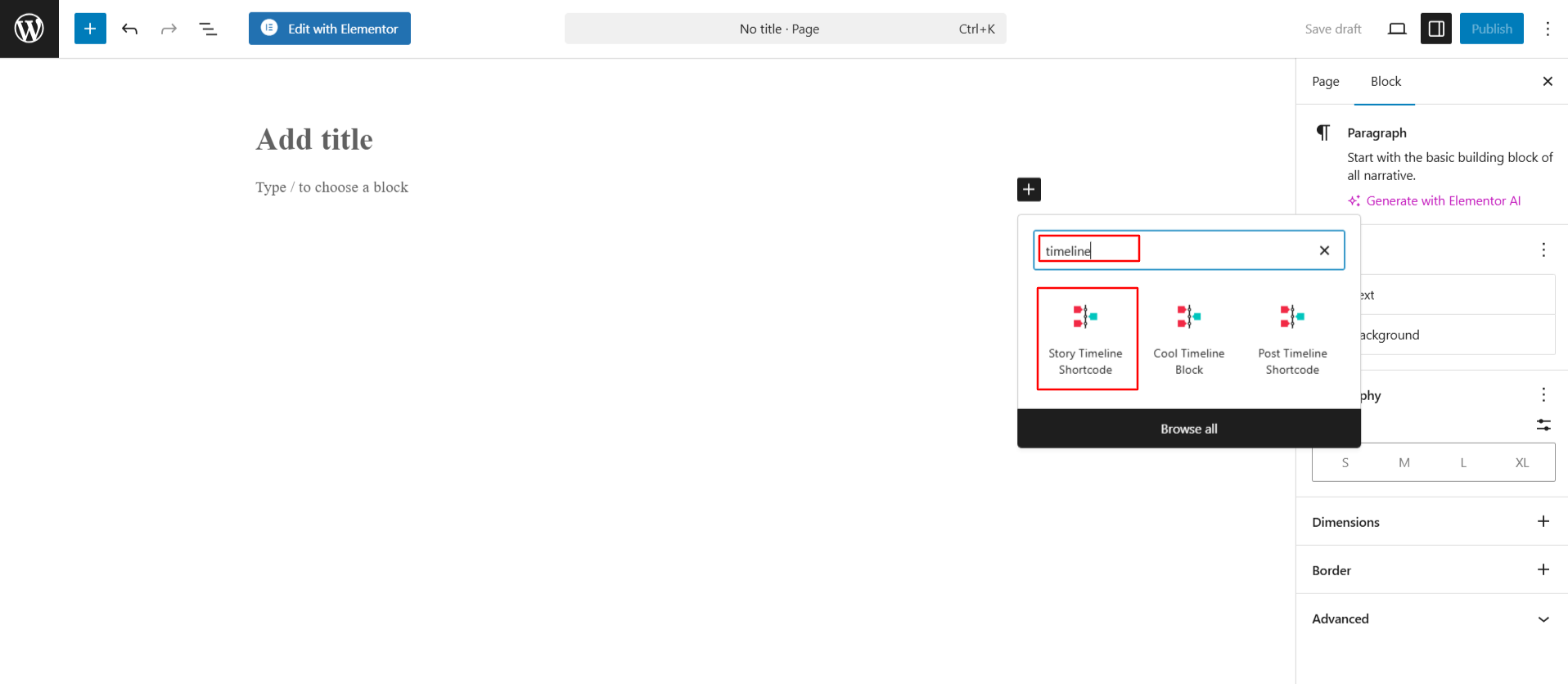
- Search for “Timeline” and select the Story Timeline Shortcode.
- The shortcode will be added to your page.
Shortcode Attributes
Now, you can customize your shortcode using the following shortcode attributes:
| Shortcode Attribute/Settings | Default Value | Available Options | Description |
| Timeline Categories | category=”timeline-stories” | All Dynamic Categories List | Display stories from a specific category, or by default, all categories are shown. |
| Timeline Layouts | layout=”default” | Default Vertical View Demo Horizontal View Demo One-side View Demo Compact View Demo | Choose the timeline layout from Vertical, Horizontal, One-sided, and Compact layout. |
| Timeline Designs | designs=”default” | Default Flat Design Classic Design Elegant Design Clean Design Modern Design Minimal Design Simple Design | Select your preferred timeline design style. Each design gives a different visual look to your timeline. |
| Timeline skins | skin=”default” | Default Dark Light | Change the color theme of your timeline. You can use light, dark, or the default color style. |
| Date Formats | date-format=”default” | F j January 1 (F j) F j Y January 1 2019 (F j Y) Y-m-d 2019-01-01 (Y-m-d) m/d/Y 01/01/2019 (m/d/Y) d/m/Y 01/01/2019 (d/m/Y) F j Y g:i A January 1 2019 11:10 AM (F j Y g:i A) Y 2019(Y) Custom | Choose how dates appear in your stories. You can also use your own custom date format. |
| Timeline Based On | based=”default” | Default Custom | Select whether your timeline is based on story dates or custom order. |
| Stories Per Page | show-posts=”10″ | 1-50 | Set how many stories to display per page. Pagination appears after this number. |
| Pagination Settings | pagination=”default” | Off Ajax Load More | Choose your pagination type: “off” to disable pagination or “ajax-load-more” to load more stories with AJAX. |
| Icons | icons=”NO” | No Yes | Show or hide icons in timeline stories. By default, a simple dot is shown. |
| Stories Description | story-content=”short” | Short Full | Show a short description or full story content (with HTML). |
| Stories Order | order=”DESC” | DESC ASC | Arrange your timeline stories in ascending or descending order. |
| Category Filters Settings | filters=”no” | No Yes | Enable or disable category filters on your timeline. |
| Compact Layout | Date&Title position compact-ele-pos=”main-date” | On top date/label below title On top title below date/label | (Only for Compact Layout) Choose the position of the date and title: main-date = date on top, title below; main-title = title on top, date below. |
| Animation | animation=”none” | None zoom-in fade flip-right zoom-out fade-up fade-down fade-left fade-right fade-up-right fade-up-left fade-down-right fade-down-left flip-up flip-down flip-left slide-up slide-left slide-right flip-left zoom-in-up zoom-in-down slide-down zoom-in-left zoom-in-right zoom-out-up zoom-out-down zoom-out-left zoom-out-right | Add Animations Effect Inside Timeline. |