Using the Style Settings in Cool Timeline Pro, you can customize the background colors, line colors, fonts, and other visual elements according to your website.
Follow the steps below:
- From your WordPress dashboard, navigate to Timeline Addons > Timeline Settings > Style settings.
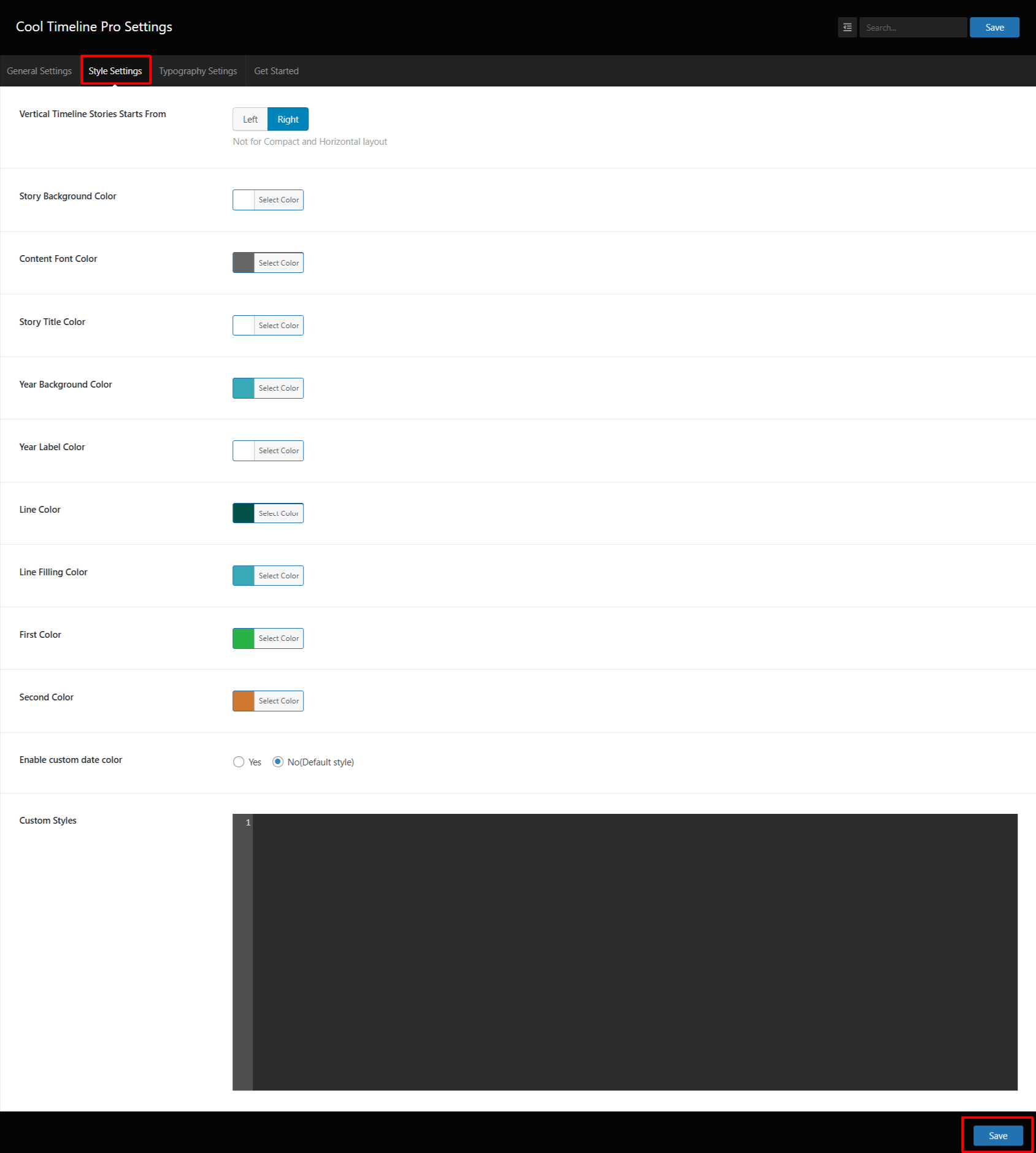
- Vertical Timeline Stories Start From: Choose where your stories should start, Left or Right side of the page.
- Story Background Color: Set a background color for each story box on your timeline.
- Content Font Color: Select a color for the story text.
- Story Title Color: Change the color of your story titles or headings.
- Year Background Color: Select a background color for the year label that appears beside or above your stories.
- Year Label Color: Choose a text color for the year or date labels.
- Line Color: Set the color of the timeline line that connects your stories.
- Line Filling Color: Choose a color for the filled section of the timeline line.
- First Color / Second Color: Pick two colors for your timeline.
- Enable Custom Date Color: If you want to set your own date color instead of using the default style, choose Yes.
- Custom Styles: Add custom CSS if you want to add custom styles.