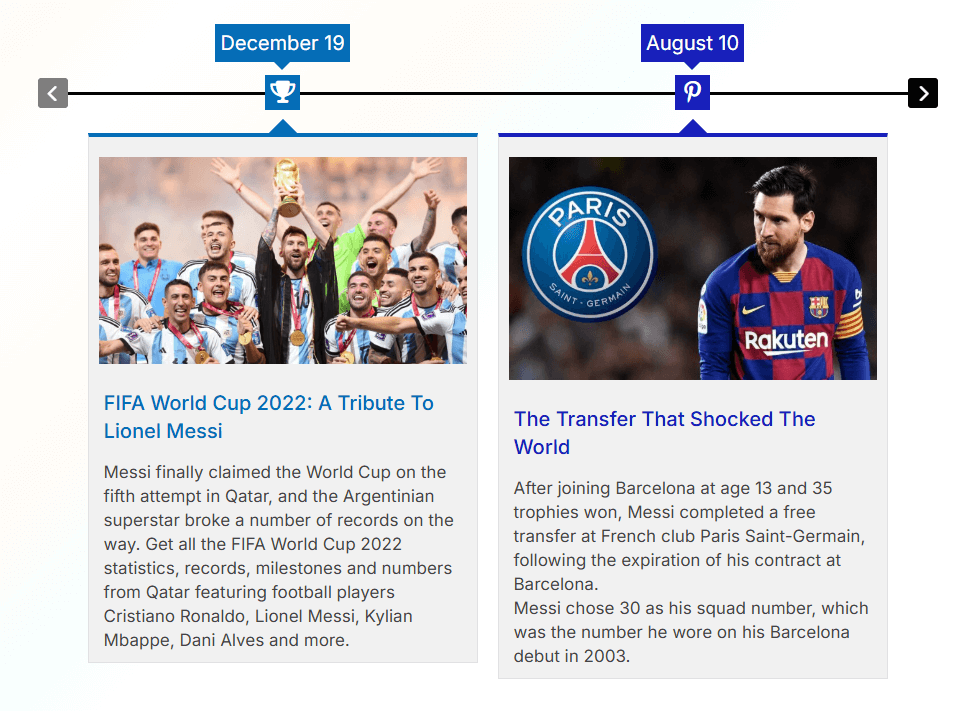
A horizontal timeline displays your stories or events in a left-to-right direction instead of the traditional top-to-bottom format. Cool Timeline allows you to display a horizontal timeline anywhere on your WordPress website using a simple shortcode.
You can add this shortcode inside your pages or posts using either the Classic Editor or the Gutenberg Block Editor.
Add Horizontal Timeline in Classic Editor
If you are using the Classic Editor, follow these steps to add a horizontal timeline:
- Open your page/post in Classic Editor.
- Click on the Add Timeline button in the toolbar (as shown in the editor screenshot).
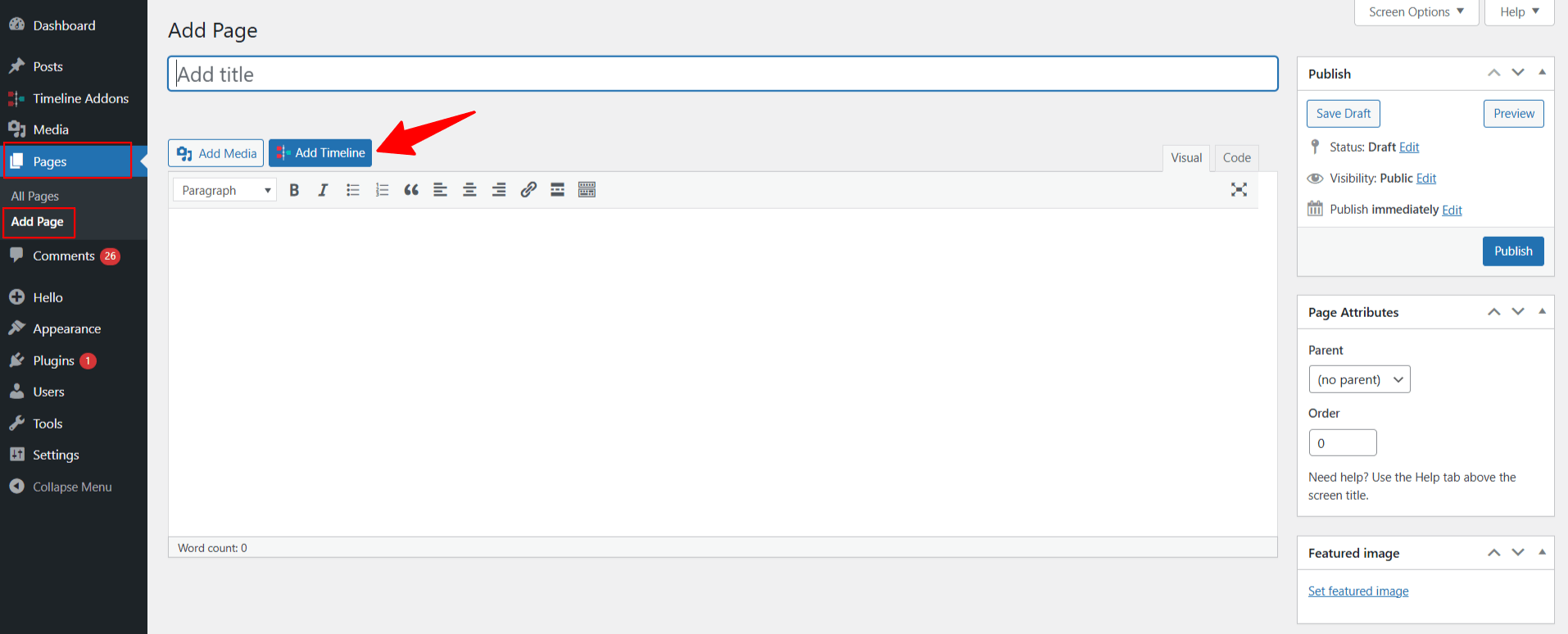
- A pop-up panel will appear.
From General Settings:
- Select Layout: Choose a Horizontal layout for your timeline story.
- Select Design: Select from multiple predefined timeline designs to change the visual appearance of your timeline.
- Select Skin: Set the color scheme of your timeline. You can choose Default, Light, Dark, or Colorful styles depending on your site design.
- Category: Select a specific story category to display only the stories that belong to that category. This helps when creating multiple timelines.

- Timeline Based On: Decide whether your timeline should be Date Based (stories shown by date) or use Custom Labels/Text.
- Stories Description: Choose between Summary (short description) or Full (complete story content with formatting) for displaying story content.
- Display Per Page: Set the number of stories to display per page. If you have more stories than this number, pagination will appear automatically.
- Slide to Show: Set the number of stories (slides) visible at one time in your horizontal timeline.
- Year Label Setting: Enable or disable the year label display within your timeline.
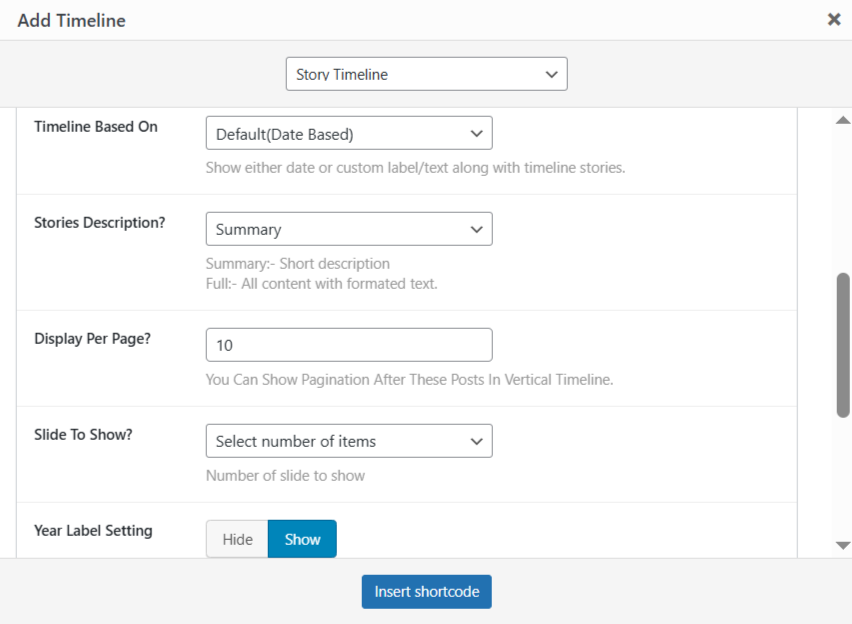
- Year Navigation Setting: Show or hide the year navigation bar, allowing users to quickly jump between different years in your timeline.
- Autoplay Settings: Turn autoplay on or off for your horizontal timeline. When enabled, the timeline will automatically slide through stories one by one without user interaction.
- Timeline Starting from Story: Decide which story the timeline should start displaying from. For example, if you enter “2,” the timeline will begin from the second story instead of the first.
- Slideshow Speed: Set how fast the stories should move in autoplay mode.

From Advanced Settings:
- Stories Order: Choose the order in which your timeline stories appear, from ASEC or DESC.
- Stories Date: Set how the timeline date should appear. You can use the default or choose a custom date format.
- Icons: Highlight events using custom icons or simple dots
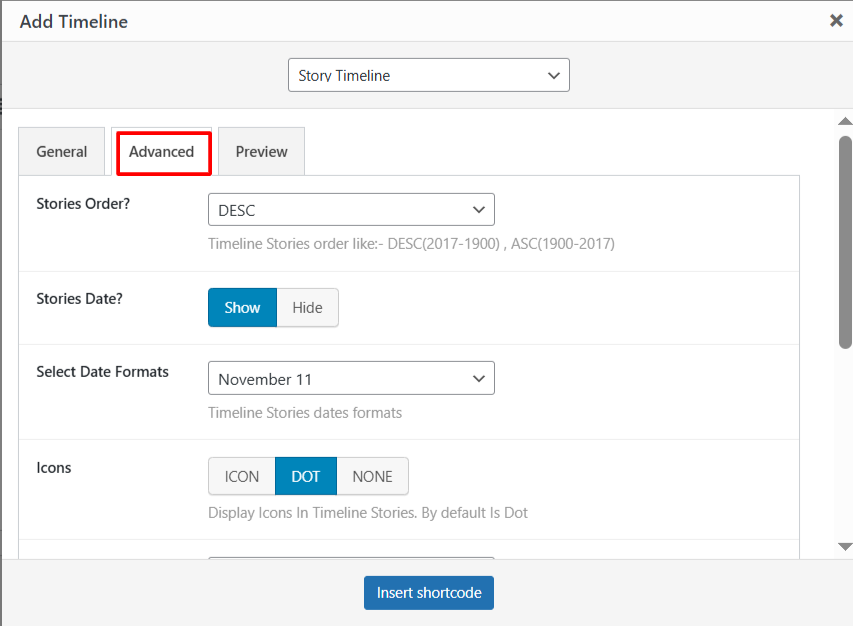
- Pagination Settings: Add pagination and “load more” buttons to easily manage timelines with many stories.
- Category Filters Settings: Enable or disable filters to let visitors filter stories from specific categories.
- Line Filling: Toggle this on if you want to fill the center line connecting all stories.
- Display Read More: Choose whether to show the “Read More” link for each story.
- Content Length: Set the number of characters or words to display from each story’s content.

- After being satisfied with all the changes, click on Insert Shortcode.
- Shortcode will be added to your page. Now publish your page and preview it.
If you want to explore more options to customize your Classic Editor timeline further, check out our Cool Timeline Settings Guide.
Add Horizontal Timeline in Gutenberg Editor
If you are using the Gutenberg Editor, follow these steps to add a horizontal timeline in block editor:
- Open any page or post in the Gutenberg editor.
- Click on the “+” Add Block button.
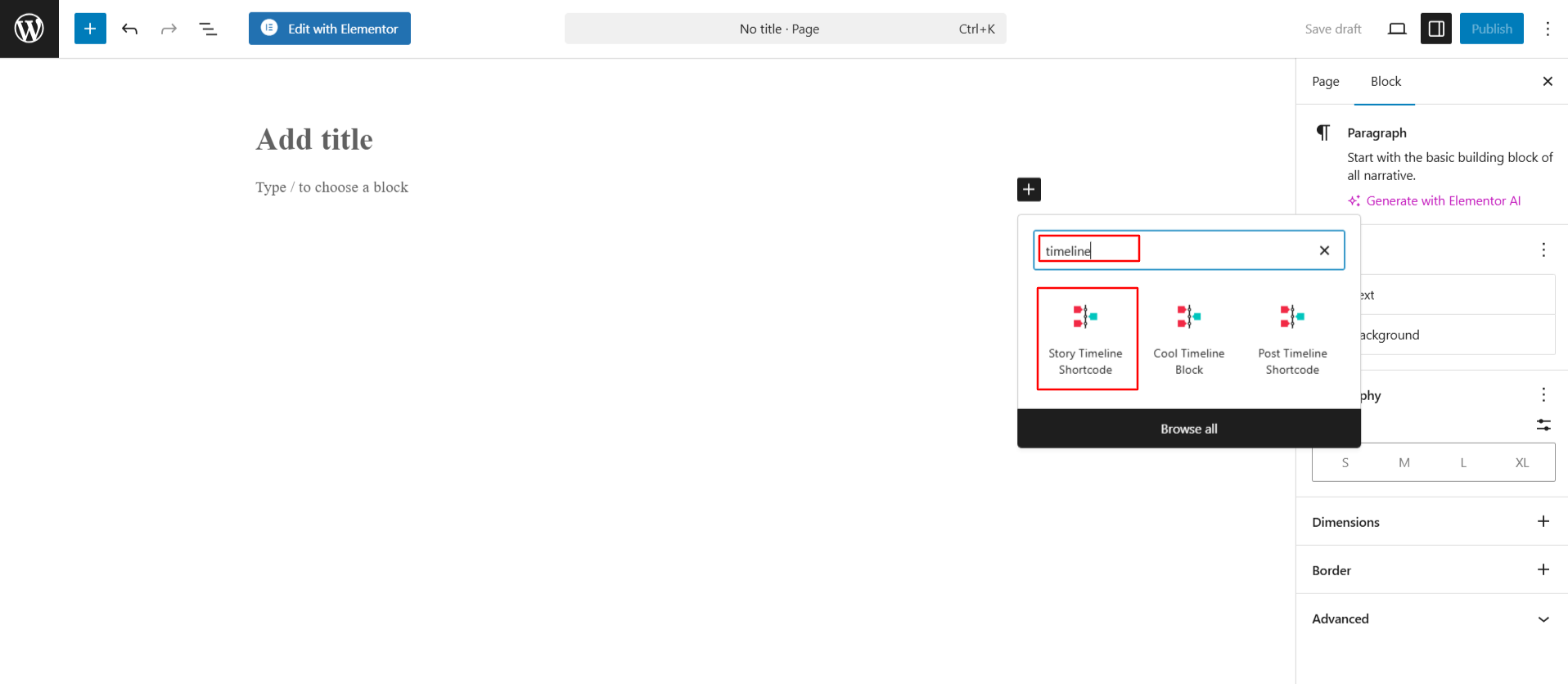
- Search for “Timeline” and select the Story Timeline Shortcode.
- The shortcode will be added to your page.
- After adding the timeline shortcode to your page, you can fully customize the display of timeline using the following settings.
From General Settings:
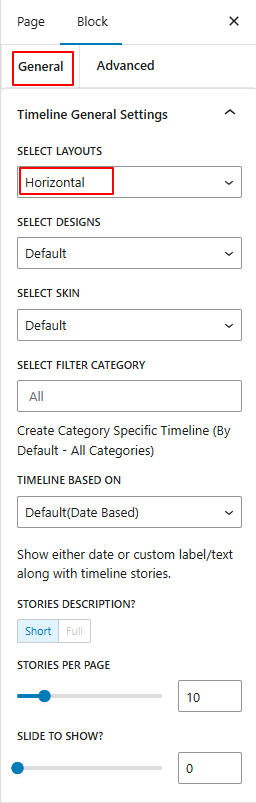
- Select Layouts: Choose a horizontal layout from the available options.
- Select Designs: Select from multiple predefined timeline designs to change the visual appearance of your timeline.
- Select Skin: Choose the color theme for your timeline. You can use the default, dark, or light skin according to your requirements.
- Select Filter Category: Display all timeline stories or choose to display stories from a specific category.
- Timeline Based On: Decide whether your timeline should be Date Based (stories shown by date) or use Custom Labels/Text.
- Stories Description: Select whether you want to show a short summary or the full story content inside each timeline item.
- Stories Per Page: Set how many stories should appear on one page. Pagination will be added automatically after the given number of stories.
- Slide to Show: Set the number of stories (slides) visible at one time in your horizontal timeline.
From Advanced Settings:
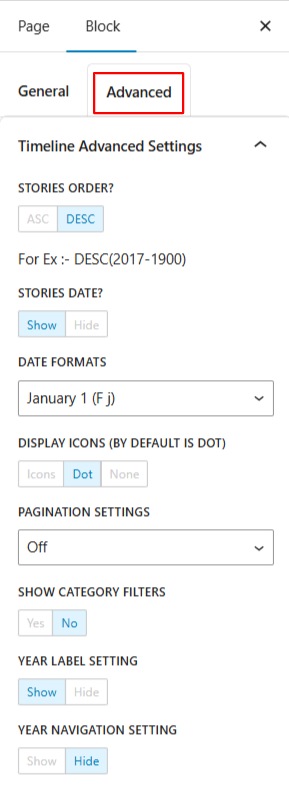
- Stories Order: Choose how your stories appear on the timeline from DESC or ASC.
- Stories Date: Show or hide the date for each story.
- Date Formats: Select how the date will appear on your timeline.
- Display Icons: Show icons next to your stories. By default, a small dot is shown, but you can choose to display custom icons.
- Pagination Settings: Choose how users navigate between multiple pages of stories. You can use the default numbered pagination or enable AJAX “Load More”.
- Show Category Filters: Allow users to filter stories by category.
- Year Label Setting: Show or hide the year labels that appear between stories on your timeline.
- Year Navigation Setting: Display or hide year navigation buttons, allowing users to jump to stories from a specific year.
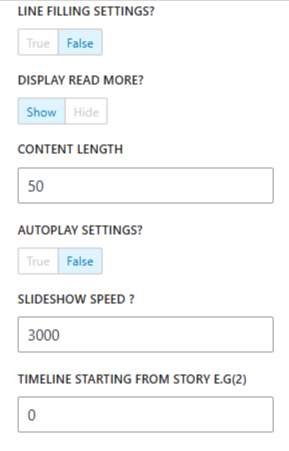
- Line Filling Settings: Toggle this on if you want to fill the center line connecting all stories.
- Display Read More: Show or hide the “Read More” button below each story.
- Content Length: Set how much of each story’s text will appear before the “Read More” link.
- Autoplay Settings: Turn autoplay on or off for your horizontal timeline. When enabled, the timeline will automatically slide through stories one by one without user interaction.
- Slideshow Speed: Set how fast the stories should move in autoplay mode.
- Timeline Starting from Story: Decide which story the timeline should start displaying from. For example, if you enter “2,” the timeline will begin from the second story instead of the first.
- After satisfied with all the changes, publish the page and preview it.
Output