The Vertical Story Timeline layout displays your stories from top to bottom. With the Story Timeline Widget for Elementor, you can create a vertical timeline directly inside the Elementor editor without any coding.
Add Story Timeline Widget
Follow these simple steps to create a Vertical Story Timeline inside Elementor:
- From your WordPress dashboard, navigate to the Pages section.
- Click Edit with Elementor to open the page builder.
- From the Elementor widget panel, search “Story Timeline”.
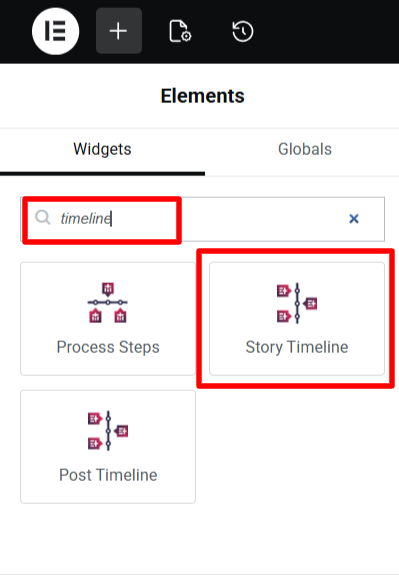
- Once added, you will see a default timeline structure appear on your page.
Timeline Settings
Once the widget is added, you can create a vertical timeline using the Layout Settings from the Content settings tab.
- Layout: Choose the layout for Vertical timeline: Vertical (Left & Right), Vertical (Left Only), Vertical (Right Only), Vertical (Compact), or Vertical (Tab).
- Preset Styles: Apply a predefined design to your timeline.
- Initial Story Alignment: Choose where the first story should appear on a vertical timeline, on the Left side or the Right side.
- Content Alignment: Control how the text inside each story box is aligned: Left, Center, or Right.
- Content Alignment (Left): When the first story is aligned to the Left, this option lets you control how content inside left-side story boxes is aligned.
- Connector Style: Choose the connector style for timeline stories.
- Display Icons: Choose the type of icons from custom or dot.
- Icon / Labels Position: Adjust the position of timeline icons and labels.
- Content in Popup: Enable this if you want the full story content to open in a pop-up when users click on a story.

- Image Pop Up: Enable this option if you want the story image to open in a lightbox pop-up.
- Animation: Choose an animation effect for how each story appears while scrolling.
- Image Out Of The Box: When turned on, the story image will appear slightly outside the story box.
- Navigation / Menu: Enable navigation buttons or menu to help users move through the timeline easily.

After being satisfied with all the changes, publish your page and preview it.