Using Content settings, you can easily add, edit, and manage all timeline stories that appear in your timeline.
- Click on the settings icon of the particular timeline story.
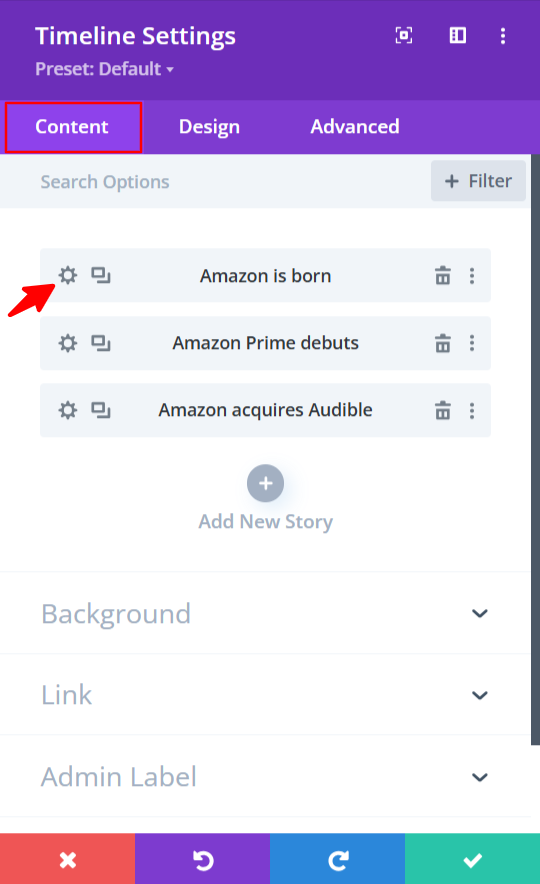
- Here you can edit the full content of that story.
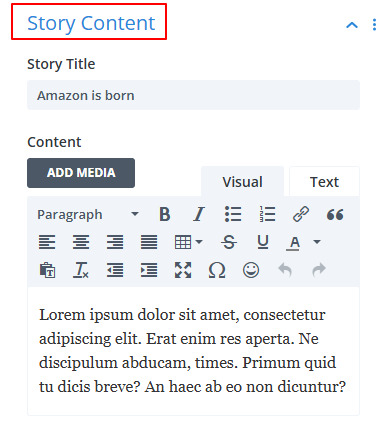
- Story Content:
- Story Title: Add the title for timeline story.
- Content: Add the description or text for the timeline story.
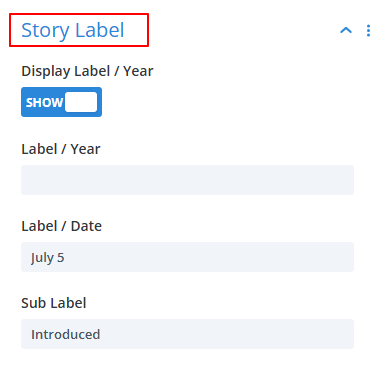
- Story Label:
- Display Label/Year: Toggle on this option if you want to display timeline label/year.
- Label/Year: Enter label/year for your timeline.
- Label/Date: Enter label/date for your timeline.
- Sub Label: Add additional small text under the main label.
- Story Media:
- Upload: Upload or select an image that represents your timeline story.
- Alt Text: Enter the alt text for image.

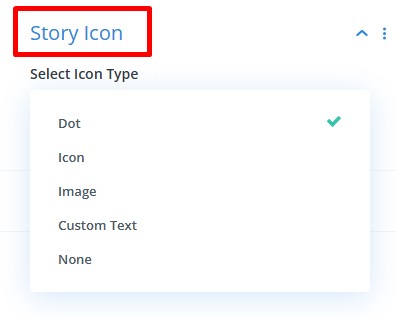
- Story Icon:
- Icon Type: Choose the type of icon for the timeline story from dot, icon, image, custom text, or none.
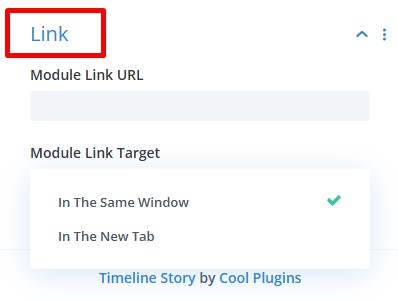
- Link:
- Module Link URL: Enter the link if you want users to be redirected to another page when they click on the timeline.
- Module Link Target: Choose whether you want to open the link in the same window or new one.
Similarly, edit the content of other timeline stories.
- To add a new timeline story, click on the “+” icon, new timeline story module will be added.