Compact Timeline (Clean Design)

Vertical Timeline Compact Layout (Clean Design) Demo

Default Skin- (Clean Design)

WooCommerce
WooCommerce

WooThemes and WooCommerce were acquired by Automattic.
The WordPress REST API was merged into the core software.

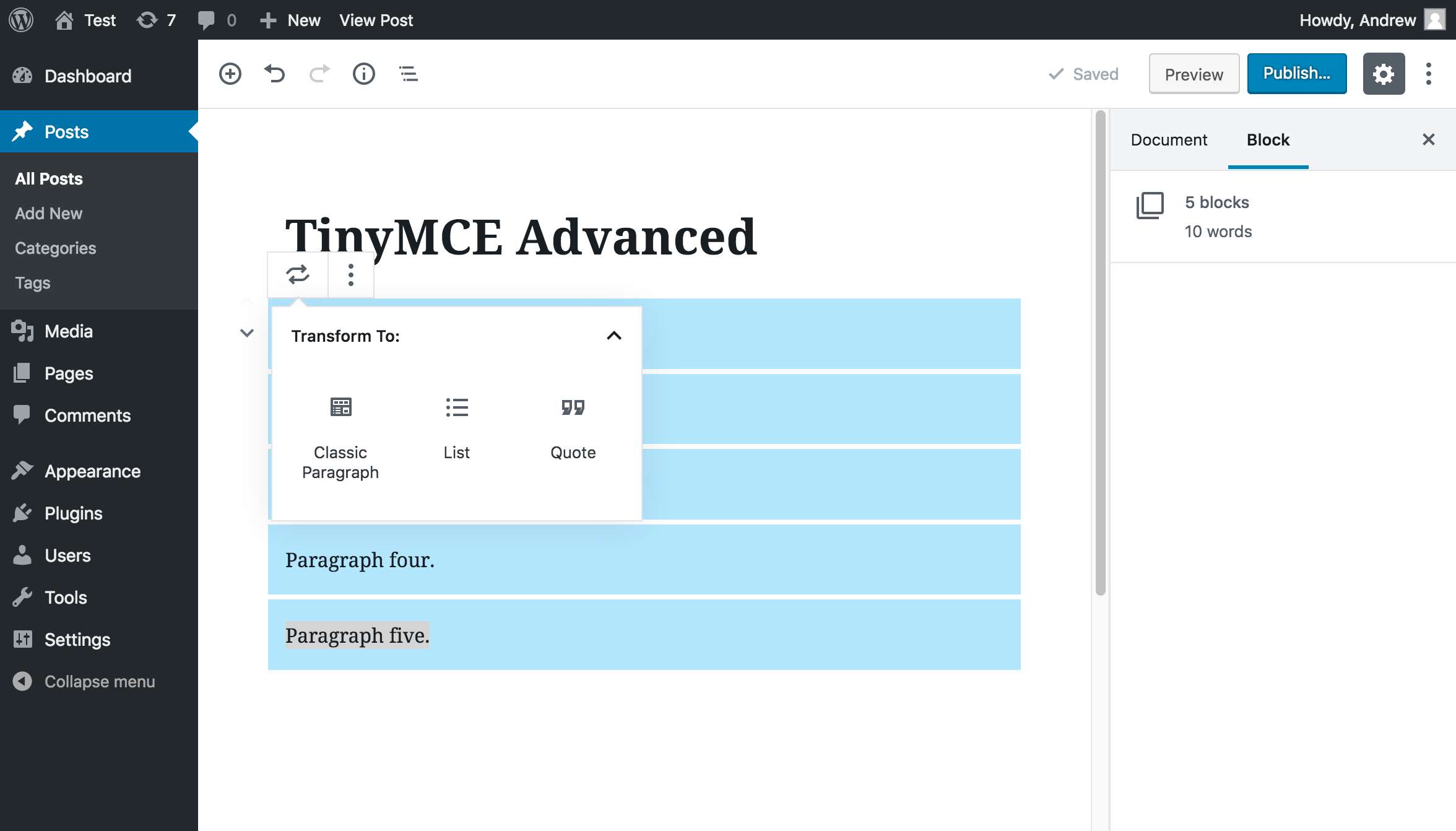
TinyMCE Editor
TinyMCE Editor

WordPress 4.0 was released.
Focused on improving the WordPress visual post editor.
Resizing and editing images in the post editor.

Mobile Friendly Admin

The mobile-friendly admin interface was redesigned.
Auto-update WordPress for minor/security releases without any user input.

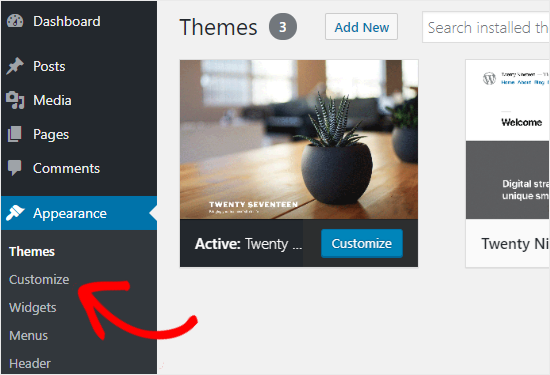
Theme Customizer
Theme Customizer

The Theme Customizer & theme viewing and introduced.
Creating galleries and uploading photos was redesigned.
@jetpack was launched.

Shortcode (Above timeline uses this shortcode) :-
				
					[cool-timeline layout="compact" designs="design-5" skin="default" category="google-history"  show-posts="4" order="DESC" icons="icon" animations="fade-up"  based="default" date-format="d F D" story-content="full" timeline-title=" COMPANY HISTORY" line-filling="true" year-navigation="show" navigation-position="right"]


Dark Skin- (Clean Design)

Basic Knowledge for WordPress dummies

Before Starting we want to tell you that you can install a plugin in WordPress 3 way –

  • Direct WordPress plugin search
  • Upload a plugin inside WordPress
  • By using FTP to upload a plugin.
Install via direct WordPress plugin search

First thing you need to do is go to your WordPress admin area and click on Plugins » Add New. Then search any plugin and click on install button. But from here you can only install free plugins that are available in WordPress plugin directory. Click on image left from more info.

Upload a plugin in WordPress

Paid plugins are not listed in WordPress directory so you can upload them via WordPress upload plugin option. First, you need to download the plugin from the source (which will be a zip file). Next, you need to go to WordPress admin area and visit Plugins » Add New page. Then upload plugin & activate it.

Manually FTP Upload A WordPress Plugin

For this first you need to extract plugin zip file. Now Open the FTP client on your computer and connect. Once connected, you need to access the path /wp-content/plugins/ Next, upload the folder you extracted from the zip file to the /wp-content/plugins/ folder on your web server. Then you can activate your plugin from installed plugins list in WordPress dashboard.

Shortcode (Above timeline uses this shortcode) :-
				
					[cool-timeline layout="compact" designs="design-5" skin="dark" category="bc-ad-timeline" show-posts="4" order="ASC" icons="dot" animations="fade-in" story-content="full" timeline-title="" based="custom" line-filling="true" year-navigation="show" navigation-position="right"]


Light Skin- (Clean Design)

Basic Knowledge for WordPress dummies

Before Starting we want to tell you that you can install a plugin in WordPress 3 way –

  • Direct WordPress plugin search
  • Upload a plugin inside WordPress
  • By using FTP to upload a plugin.
Install via direct WordPress plugin search

First thing you need to do is go to your WordPress admin area and click on Plugins » Add New. Then search any plugin and click on install button. But from here you can only install free plugins that are available in WordPress plugin directory. Click on image left from more info.

Upload a plugin in WordPress

Paid plugins are not listed in WordPress directory so you can upload them via WordPress upload plugin option. First, you need to download the plugin from the source (which will be a zip file). Next, you need to go to WordPress admin area and visit Plugins » Add New page. Then upload plugin & activate it.

Manually FTP Upload A WordPress Plugin

For this first you need to extract plugin zip file. Now Open the FTP client on your computer and connect. Once connected, you need to access the path /wp-content/plugins/ Next, upload the folder you extracted from the zip file to the /wp-content/plugins/ folder on your web server. Then you can activate your plugin from installed plugins list in WordPress dashboard.

Shortcode (Above timeline uses this shortcode) :-
				
					[cool-timeline layout="compact" designs="design-5" skin="light" category="timeline-stories"  show-posts="4" order="ASC" icons="icon" date-format="d F D" animations="fade-up" based="default"  story-content="full" timeline-title=" " line-filling="true" year-navigation="show" navigation-position="right"]


Easter & Good Friday Special Sale

UP TO 50% OFF

Offer ends in:

D
H
M
S
Christmas & New Year Sale

SALE

Christmas
& New Year

Upto

80%

OFF

Ends in

Days
Hours
Min
Sec