Plugin Compatibility
Q1: Is Timeline Block Pro compatible with the latest version of WordPress?
Ans: Yes, Timeline Block Pro is regularly updated and fully compatible with the latest stable versions of WordPress and Gutenberg.
Q2: Does the plugin work with the classic editor?
Ans: No. Timeline Block Pro is built specifically for the Gutenberg block editor and does not work inside the Classic Editor.
Q3: Can I use Timeline Block Pro with page builders like Elementor or Divi?
Ans: Timeline Block Pro is designed for the Gutenberg block editor only. If you are using Elementor or Divi, we recommend using our dedicated plugins: Timeline Widget For Elementor and Timeline Module For Divi.
Q4: Is the plugin compatible with multilingual plugins?
Ans: Yes, Timeline Block Pro works with popular translation plugins. You can translate timeline content and labels into different languages based on your multilingual setup.
Common Issues & Solutions
Q1: How can I switch between horizontal and vertical layouts?
Ans: Use the layout options in the block settings panel to switch between horizontal and vertical layouts.
Q2: Can I customize the colors and fonts of the timeline?
Ans: Yes, the plugin provides options to customize colors, fonts, and typography directly in the block settings panel. You can also add custom CSS for additional styling.
Q3: How do I add a timeline to a specific page or post?
Ans: Open the page or post in the block editor and add the Timeline Block Pro, then customize the timeline settings as needed.
Q4. Why are my timeline entries not displaying in chronological order?
Ans: You can reorder your timeline entries manually by clicking the up and down arrows on the block’s toolbar to adjust their position as needed.
Q5: How do I fix alignment issues in my timeline?
Ans: Alignment issues may be caused by conflicting styles from your theme. Disable optimization plugins temporarily and apply custom CSS to resolve conflicts.
Q6. How do I troubleshoot plugin compatibility issues?
Ans: If the plugin conflicts with other plugins or themes, deactivate the conflicting plugin or temporarily switch to a default WordPress theme. Or contact support for further assistance if the issue persists.
Q7. How do I customize the date format in the timeline?
Ans: Navigate to the block settings and select the desired date format. Changes will apply automatically to all timeline entries.
License & Account Queries
Q1. Where can I find my license key?
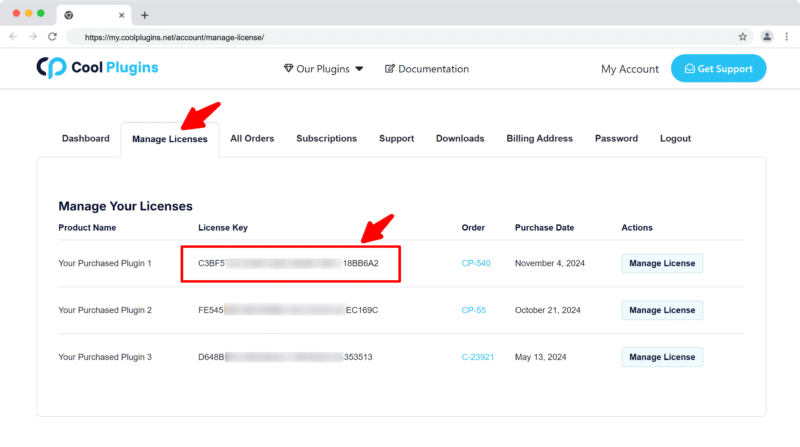
Ans. You can find your license key by logging into your account at my.coolplugins.net. Once logged in, navigate to the Manage Licenses section. There, you will see a list of your purchased plugins along with their license keys displayed next to each plugin name.
Q2. How do I activate my license on a site?
Ans. After installing the plugin, go to Settings > Timeline Block License in your WordPress dashboard and enter your license key in the License section.
Q3. Can I move my license to a different website?
Ans. Yes, you can transfer your license from one website to another. But to do this, make sure to deactivate the license on your old domain first, and then activate it on the new website.
Q4. How can I cancel the auto-renewal of my license key?
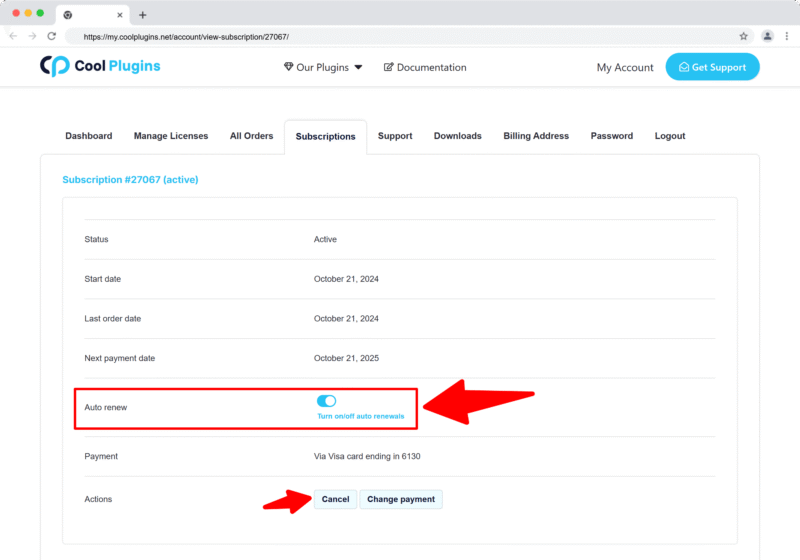
Ans. You can cancel the auto-renewal at any time by logging into your account on our website. Go to the Subscriptions section, find your active license, and click on the Cancel Auto-Renewal button. This will stop future charges, but your license will remain active until the end of the current billing period.
Q5. How can I download my invoice?
Ans. To download your invoice, log in to your account on our website. Navigate to the Orders section. Find the order you want the invoice for, and click the Invoice button to download it.
Contact Support
Q1. I need help with an issue not listed here. How can I get support?
Ans. If you have a question or issue not covered in the FAQ, you can contact our support team by logging into your account at my.coolplugins.net and submitting a support ticket. Our team typically responds within 24–48 business hours to help resolve your issue.
Q2. Is support available for free plugin users?
Ans. If you are a free plugin user, you can get help by raising a ticket through the WordPress.org support forum.