Plugin Compatibility
Q1: Is the Timeline Widget compatible with Elementor Free and Pro?
Ans: Yes, the Timeline Widget works with both Elementor Free and Pro. However, some advanced features or styling options may work better when using Elementor Pro’s design capabilities.
Q2: Is the plugin multilingual-compatible (WPML, Polylang, Loco Translate)?
Ans: Yes. The plugin supports translation with popular plugins, WPML, Polylang, and Loco Translate. Make sure each translation has content assigned to display properly.
Q3: Will the plugin slow down my website?
Ans: The plugin is optimized and lightweight. However, using very large images, many stories on one page, or heavy animations may affect performance. Using pagination or Load More ensures optimal speed.
Common Issues & Solutions
Q1: The timeline layout is broken or not displaying correctly. What should I do?
Ans: This may be due to theme or plugin conflicts. Clear your cache, disable minifiers, and try deactivating other plugins one by one. Also ensure Elementor and the plugin are updated.
Q2: My timeline stories/posts are not showing on the page. Why?
Ans: Check the Timeline Query settings to make sure the correct post type, categories, or tags are selected. Also, ensure the posts are published and not saved as drafts.
Q3: Why aren’t the navigation arrows showing on my timeline?
Ans: If arrows are missing, check the plugin’s settings to ensure the Navigation Arrows option is enabled. Additionally, clear your website and browser cache, and inspect for CSS conflicts that may be overriding the visibility of the arrows on the front end.
Q4: How do I fix issues with the timeline slideshow not working on some slides?
Ans: If some slides don’t work, recreate them as ID conflicts can occur when slides are cloned. Also, disable the Infinite Loop feature in the slideshow settings, as it may cause visibility issues, and test the timeline by temporarily deactivating other plugins.
License & Account Queries
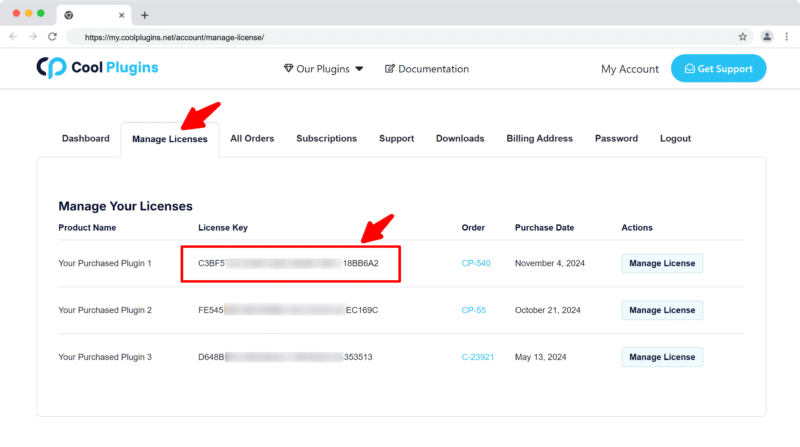
Q1. Where can I find my license key?
Ans. You can find your license key by logging into your account at my.coolplugins.net. Once logged in, navigate to the Manage Licenses section. There, you will see a list of your purchased plugins along with their license keys displayed next to each plugin name.
Q2. How do I activate my license on a site?
Ans. After installing the plugin, go to Events Addons > License. in your WordPress dashboard and enter your license key in the License section.
Q3. Can I move my license to a different website?
Ans. Yes, you can transfer your license from one website to another. But to do this, make sure to deactivate the license on your old domain first, and then activate it on the new website.
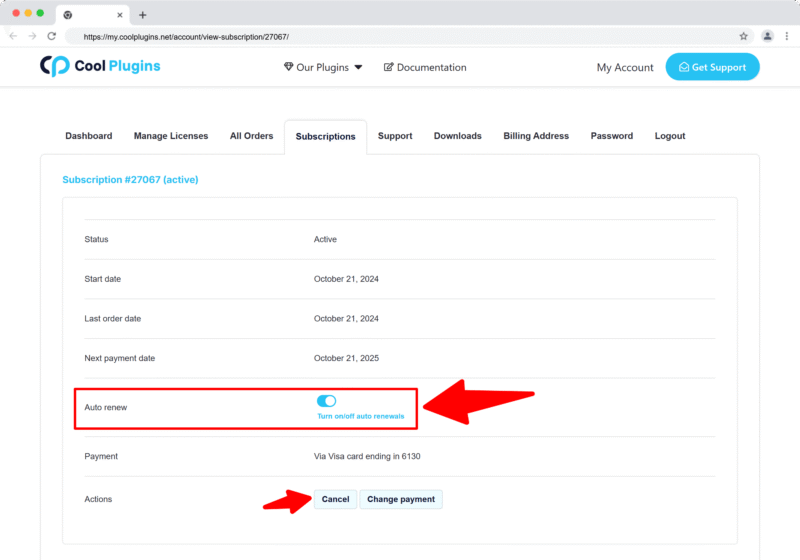
Q4. How can I cancel the auto-renewal of my license key?
Ans. You can cancel the auto-renewal at any time by logging into your account on our website. Go to the Subscriptions section, find your active license, and click on the Cancel Auto-Renewal button. This will stop future charges, but your license will remain active until the end of the current billing period.
Q5. How can I download my invoice?
Ans. To download your invoice, log in to your account on our website. Navigate to the Orders section. Find the order you want the invoice for, and click the Invoice button to download it.
Contact Support
Q1. I need help with an issue not listed here. How can I get support?
Ans. If you have a question or issue not covered in the FAQ, you can contact our support team by logging into your account at my.coolplugins.net and submitting a support ticket. Our team typically responds within 24–48 business hours to help resolve your issue.
Q2. Is support available for free plugin users?
Ans. If you are a free plugin user, you can get help by raising a ticket through the WordPress.org support forum.